Getting Started
Connecting Racing View to F1 25 allows you to access real-time telemetry data, enhancing your racing experience with detailed insights. Follow these steps to establish a successful connection:
Ensure Both Devices Are on the Same Network
Verify that your mobile device (running Racing View) and your gaming console or PC (running F1 25) are connected to the same local network. This is crucial for seamless data transmission.
Configure Racing View Settings
Open the Racing View app on your device.
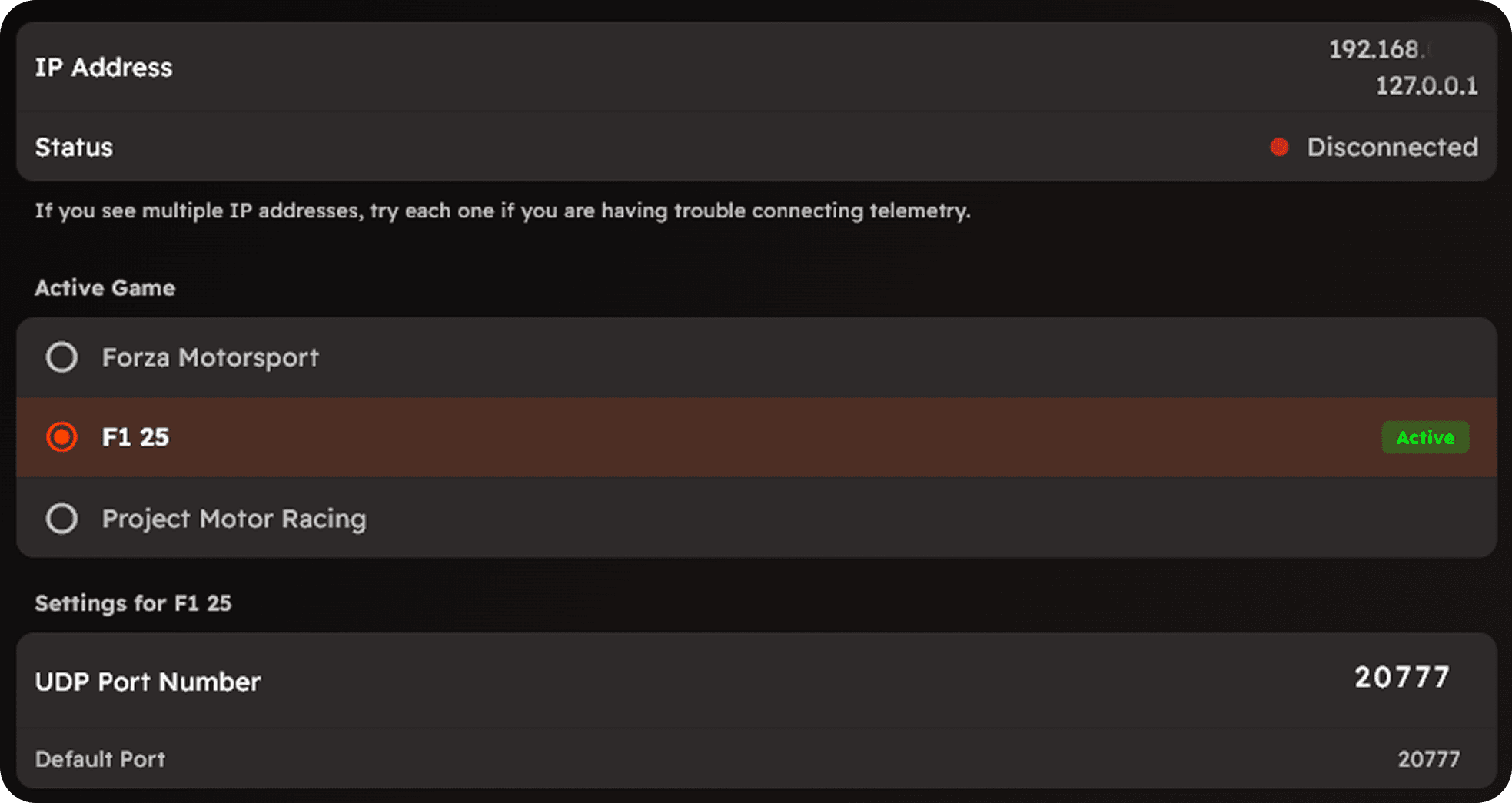
Navigate to 'Settings' > 'Connection'.
Note the IP address and port number displayed; you'll need these for the game settings.
Enable UDP Telemetry in F1 25
Launch F1 25 on your console or PC.
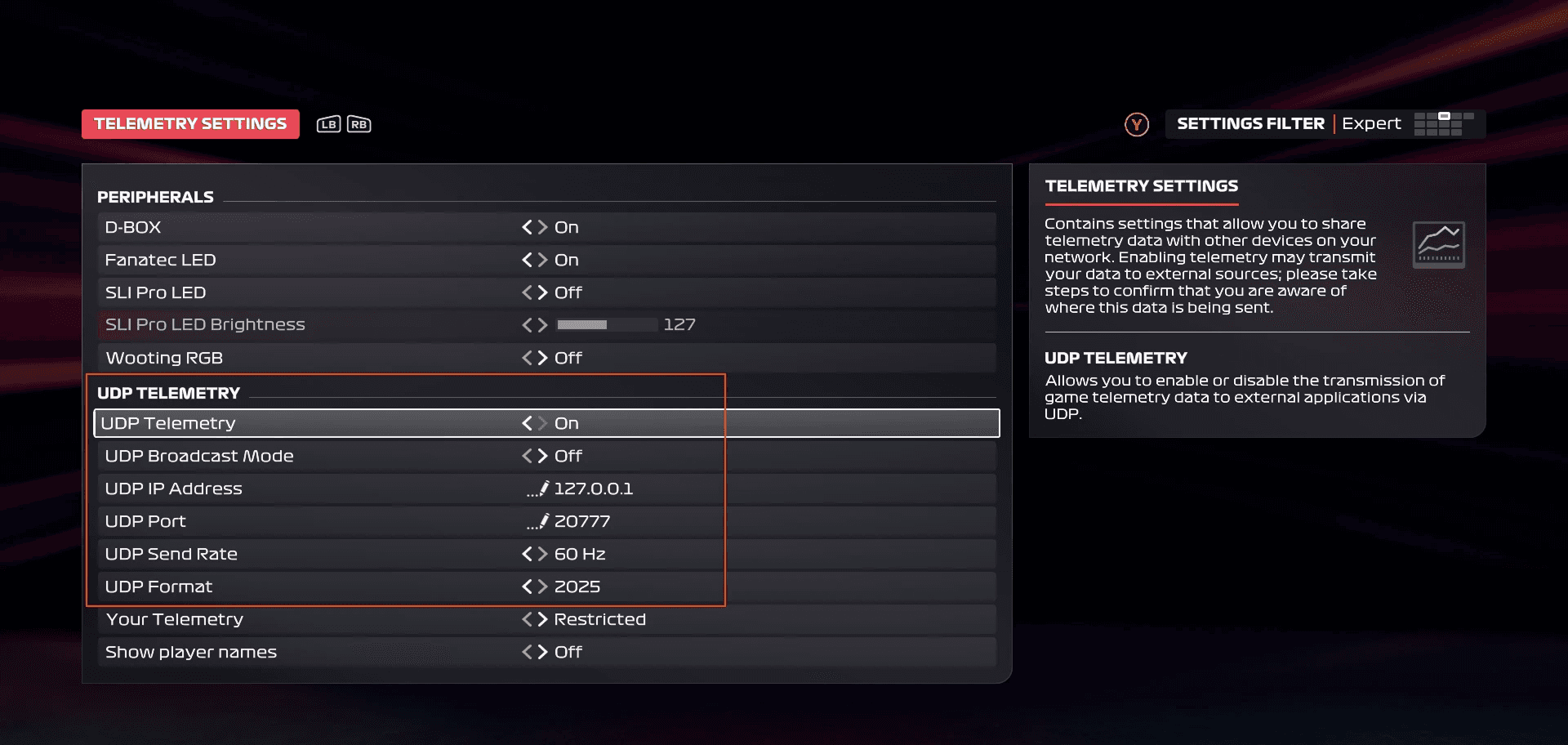
Go to 'Settings' > 'Telemetry Settings' > 'UDP Telemetry'.
Set 'UDP Telemetry' to 'On'.
Set the UDP IP Address
In the same 'UDP Telemetry' menu, locate 'UDP IP Address'.
Enter the IP address displayed in the Racing View 'Connection' settings.
Configure the UDP Port
Find 'UDP Port' in the 'UDP Telemetry' settings.
Ensure this matches the port number shown in Racing View's 'Connection' settings.
Select the Appropriate Packet Format
Set 'UDP Format' to '2025' to ensure compatibility.
Verify the Connection
In Racing View, return to 'Settings' > 'Connection' > 'Status' to check the connection status.
Start a Driving Session
Begin a race, practice, or qualifying session in F1 25
The game will now transmit telemetry data to Racing View, allowing you to monitor real-time stats.
By following these steps, you'll have Racing View and F1 25 connected, providing you with valuable data to enhance your racing performance.
Join our Discord Community
Any other questions? Get in touch